
How to delete duplicate screenshots on Android
A cleaner screenshot library starts with review. Keep the useful copy, check what will be removed, and use deletion when you want to reclaim storage. Archiving serves a different purpose.
Start with your gallery for a small library
Open your gallery's Screenshots album and compare repeated captures. Check the whole image: a newer booking number, an extra line in a conversation, or a changed price can make two similar screenshots worth keeping.
Select only the copies you no longer need and review your gallery's removal prompt. Gallery features and recovery options vary, so do not assume every deletion can be undone. Keep a separate copy of any receipt or confirmation you still need.
An exact duplicate is different from a similar screenshot
Exact copies repeat the same image. Similar captures may show different information even when their layouts look almost identical. A cleanup suggestion is a starting point for your review, not proof that an image has no value.
- Receipts: compare the order number, merchant, total, and date.
- Bookings: check whether one screenshot contains a change or cancellation.
- Messages: look for a longer conversation or information outside the preview.
- Saved references: keep the clearest and most complete version.
Review a larger library with ShotFinder
ShotFinder is an Android screenshot search app with optional Pro cleanup tools, including duplicate detection. Core search remains free; check the Free and Pro comparison before choosing the tools you need.
- Open ShotFinder and allow access to your screenshots. Give it time to analyze a large library on your device.
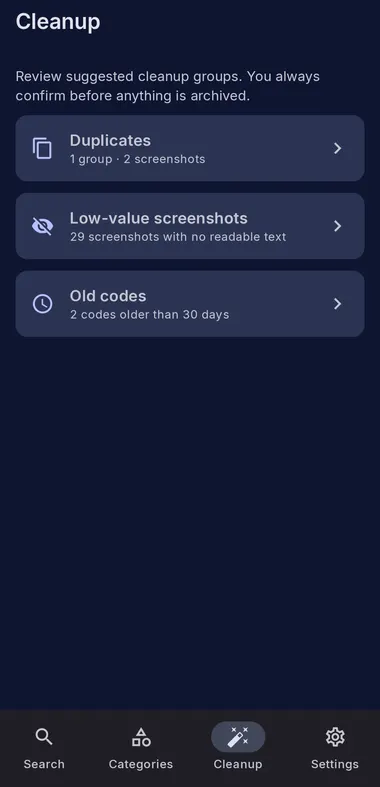
- Open Cleanup and review a suggested group. Start with duplicate screenshots rather than selecting everything at once.
- Inspect the images and choose the unwanted copies. Keep screenshots whose details are different or still useful.
- Choose archive or deletion deliberately. Review the selected items and any deletion confirmation before proceeding.
ShotFinder does not delete screenshots automatically. Some images supplied by another photo provider may need to be removed in that provider's app.
Archiving tidies the library. Deleting removes images.
Archive when you want a screenshot out of your active ShotFinder library while keeping the original image. Archiving alone does not free the storage occupied by that image.
Delete when you have reviewed the screenshot and want to remove the original. This is the operation that can reclaim storage. Read the confirmation carefully; do not rely on a recovery window being available.
Why might storage stay the same?
First check whether you archived the screenshots rather than deleted them. Then check whether the deletion was completed or canceled. If an image belongs to another photo provider, follow the removal options in that app.
Your gallery may also have a trash or recently deleted area. Its behavior depends on the provider. Review those items before permanently clearing them, and allow the device's storage view time to update.
Keep the useful screenshots easy to find
After cleanup, search by a merchant, code, place, or phrase to retrieve the images you kept. Our Android screenshot search guide includes query examples and troubleshooting steps.
ShotFinder's core analysis and cleanup run on the device. See the privacy policy for its optional network features.
Find what you saved. Review what you no longer need.
Start with free screenshot search on Android. Pro cleanup tools are an optional upgrade.
Get ShotFinder on Google Play